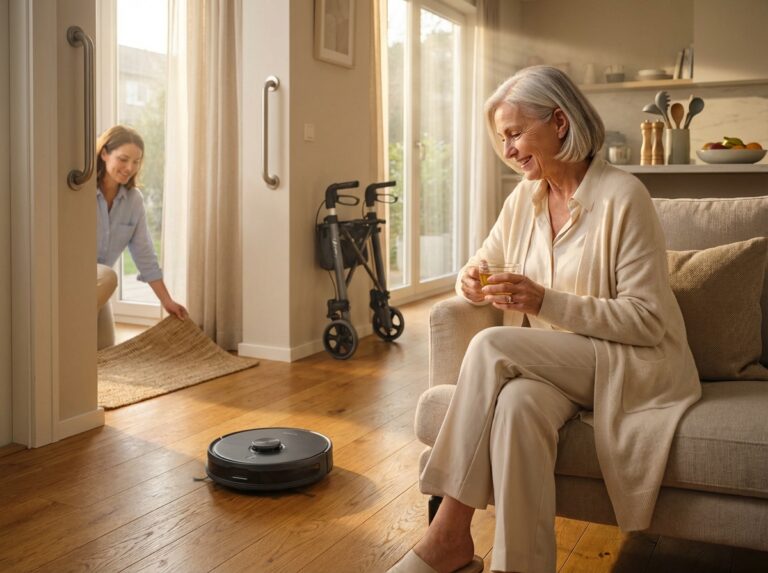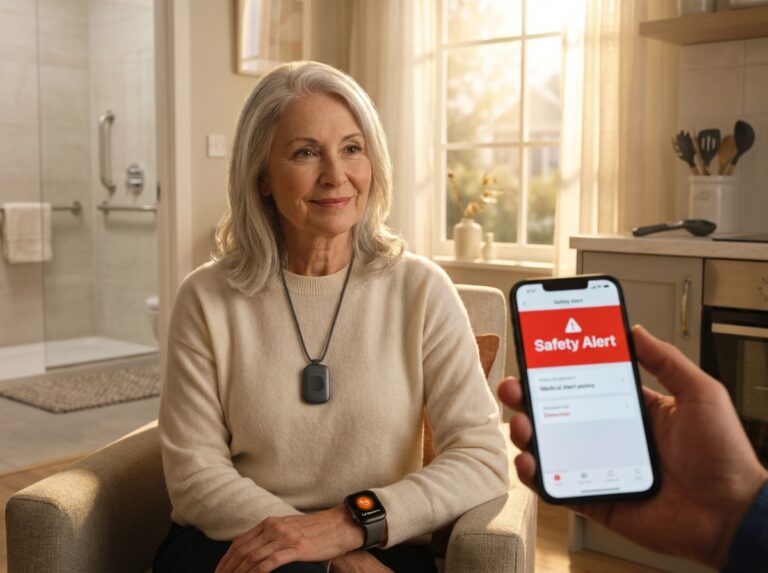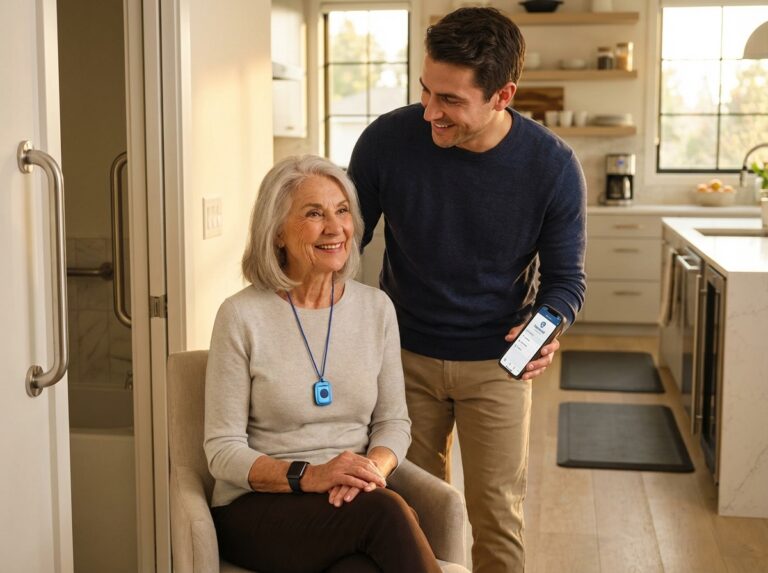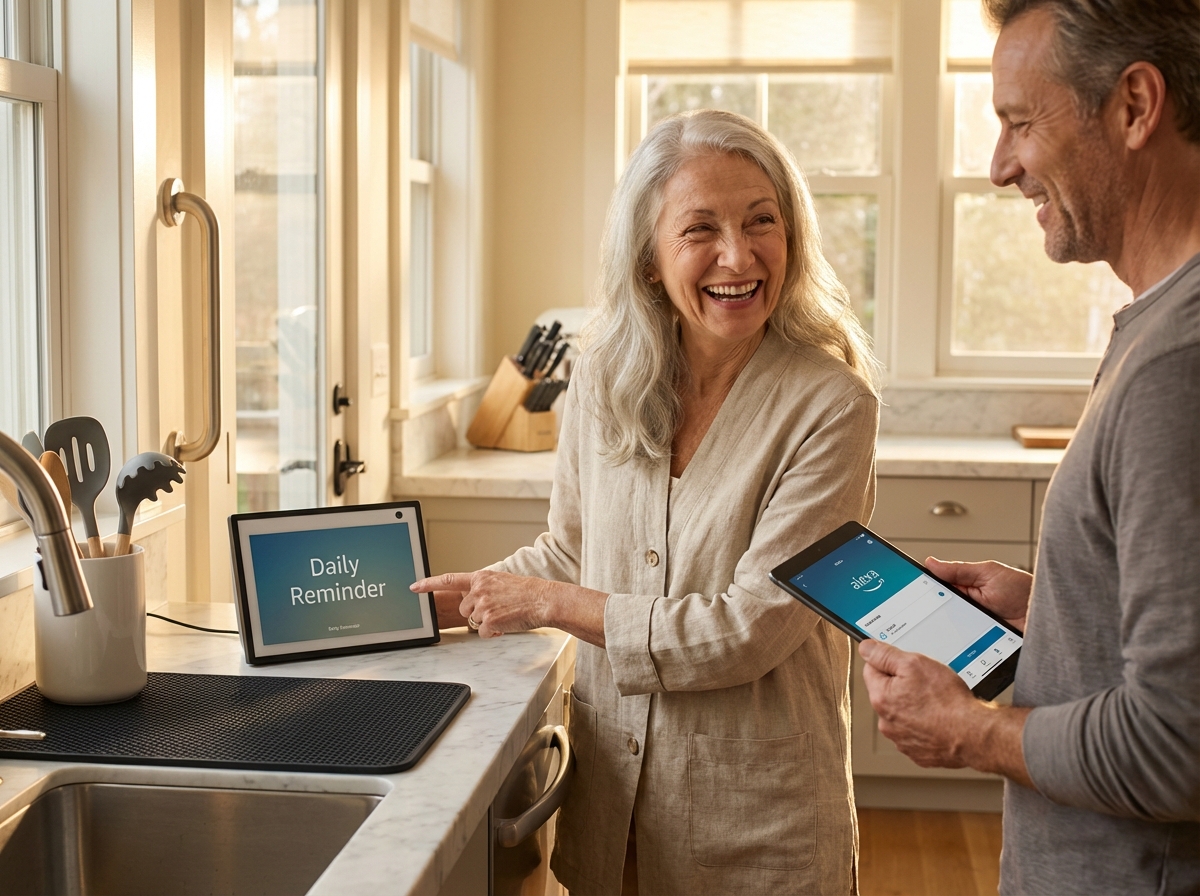
Voice assistants like Amazon Alexa can be powerful tools for older adults, offering hands-free help, safety alerts, reminders, and seamless communication with caregivers. This article walks through device choice, accessibility settings, essential skills and routines, privacy and safety tips, and common questions so families and seniors can set up Alexa for reliable daily support.
Why Alexa Can Help Seniors Stay Independent
Voice control removes the physical struggle of interacting with a home. For someone living with arthritis, turning a small lamp switch is often painful. For someone with low vision, finding a button on a remote is frustrating. Alexa lets these individuals use their voice to bypass those hurdles. It creates a hands-free environment where the house responds to the person rather than the person struggling to reach the house. This shift is a major part of why smart technology is becoming a standard in senior living.
We often talk about grab bars or non-slip mats when discussing home safety. These are vital tools. But smart technology fills the gaps those physical aids cannot reach. A smart plug allows a senior to turn on a space heater or a lamp without bending down or reaching behind furniture. Hands-free timers in the kitchen prevent the need to touch small dials while cooking. This reduces the risk of burns or spills. When a senior can control their environment from a chair or bed, the risk of a fall during a simple task like turning off a light decreases significantly.
Isolation is a major risk for older adults. Alexa offers several ways to stay in touch with family and friends. The Drop In feature acts as an instant intercom. It allows a trusted caregiver to check in without the senior needing to press a button to answer. This is especially helpful if someone has fallen and cannot reach a phone. Announcements can broadcast messages across the whole house. This is useful for quick updates like letting a spouse in another room know that a visitor has arrived. These tools help families feel connected even when they live miles apart.
Cognitive load is another area where voice tech shines. Remembering a complex medication schedule is difficult for anyone. Alexa can handle this with repeating reminders. A senior can hear a prompt to take their pills at 10 a.m. every day. Shopping lists and calendar alerts keep the day organized. This helps maintain a sense of control over daily life. When the device handles the remembering, the senior can focus on more enjoyable activities.
Safety is the biggest concern for most families. Alexa Emergency Assist is a key tool for peace of mind. In recent tests conducted in 2025, this service connected users to live operators in about 14.6 seconds. This is faster than many traditional medical alert systems. Integration with sensors like Vayyar Care adds another layer of protection. These sensors can detect falls without the senior needing to wear a pendant or a watch. Studies have shown that smart home tools can cut emergency calls by 26 percent. This is a significant impact on long-term independence. You can find more details on how these tools compare in this guide to the 7 Best Medical Alert Systems We Actually Tested in 2025.
Entertainment keeps the mind sharp and the spirit high. Alexa can play music, read audiobooks from Audible, or provide news briefings. Games and trivia skills offer cognitive stimulation. These features help reduce the feeling of being alone. A simple request for a favorite song from the 1960s can change the mood of an entire afternoon.
Adding a voice assistant to a home already equipped with physical aids creates a more complete safety net. While a grab bar helps a person stand, Alexa can call for help if they cannot. While a dressing aid helps someone get ready, Alexa can remind them of the weather so they pick the right clothes. It is a partnership between physical tools and digital intelligence.
Reasons to add Alexa alongside physical aids
Voice control prevents the need to reach for switches or buttons.
Smart plugs and lights reduce the need to move around in the dark.
Hands-free calling provides a way to get help without reaching a phone.
Medication reminders reduce the risk of missed doses.
Video calls help reduce social isolation and loneliness.
Emergency services can be reached quickly through voice commands.
Visual prompts on screens help those with memory challenges.
Daily news and music provide constant cognitive stimulation.
Caregivers can check in remotely using the Drop In feature.
Smart sensors can detect falls or unusual activity patterns.
Choosing and Setting Up the Right Alexa Device
Selecting the right hardware is the first step in creating a reliable support system. Amazon offers several Echo models in 2025. Each serves a different purpose for an older adult. The Echo Show is often the best choice for a primary living area. It has a screen that provides visual cues. This helps seniors who might struggle to hear or remember voice-only information. The screen displays the time. It shows weather icons. It lists upcoming reminders. The Echo Show 8 or 10 models are excellent for video calls with family. The larger screen makes it easier to see faces. The Echo Dot is a smaller option. It works well in bedrooms or hallways where space is limited. It provides full voice control without the visual interface. For those who enjoy high quality music, the Echo Studio offers better sound. If the senior still drives, the Echo Auto brings voice assistance to the vehicle. This allows for hands-free navigation or calling while on the road.
Estimated Costs and Budgeting
The cost of these devices has become much more manageable over the last few years. The Echo Dot is small and affordable, usually costing under $50. The Echo Show models, which feature screens for video calls and visual reminders, can cost up to $250 depending on the screen size. There is no monthly fee for basic features like timers, weather, or standard calling. However, premium safety services like Alexa Together or Emergency Assist usually cost around $6 to $20 per month. Smart home accessories like plugs or bulbs will add to the total investment. Many families find that voice assistants power smarter home care at a significantly lower price point than full-time in-home help.
Device Placement and Environment
Strategic Locations
Place the main device where the senior spends the most time. The kitchen is a top choice. It allows for hands-free timers and grocery list management. The bedroom is another critical spot. A device on the nightstand provides a way to call for help without getting out of bed. Consider placing a device in hallways near the bathroom. These are high-risk areas for falls. Avoid placing speakers near noisy appliances like dishwashers. Noise can interfere with the microphones. Do not put devices behind furniture or inside cabinets. This blocks the sound and prevents the microphones from hearing commands clearly.
Physical Guidelines
Set the device at a height of 3 to 6 feet. This is roughly seated head height. It ensures the microphones pick up speech easily. Keep the device 3 to 6 feet away from the primary sitting area. This distance is close enough for the senior to be heard. It is far enough to avoid most false triggers from a nearby television. Ensure the location has a strong Wi-Fi signal. You might need a mesh network to cover every room. Check that a power outlet is nearby. Use a smart plug for lamps in the same room to allow for voice-controlled lighting. This reduces the need to walk across a dark room to find a switch.
Initial Software Setup
Account Configuration
You need an Amazon account to start. You can create a new account for the senior. You can also add them to an existing Amazon Household. Using a separate account for the senior is often cleaner. It prevents their reminders from mixing with yours. Download the Alexa app on your smartphone. Log in with the senior’s credentials. Follow the prompts to connect the device to the local Wi-Fi. Assign each device to a specific room in the app. Use simple names like Kitchen or Bedroom. This makes it easier to manage routines later.
Voice Profiles and Caregiver Access
Set up a voice profile for the senior. The app will ask them to repeat a few phrases. This helps Alexa recognize their specific voice and accent. It improves accuracy for commands. If multiple people live in the home, Voice Profiles allow Alexa to give personalized answers—providing the correct calendar or medication reminders depending on who is speaking. You should also set up an authorized caregiver account. This allows you to manage settings remotely. You can check if they missed a medication reminder. You can update their calendar from your own home. This feature is part of the Alexa for Seniors ecosystem. It provides peace of mind for family members who live far away.
Accessibility and Customization
Visual and Audio Adjustments
Open the settings in the Alexa app for the specific device. Look for the accessibility menu. You can increase the speech rate if the senior processes information quickly. You can slow it down if they need more time to understand. Enable captions on Echo Show devices. This displays the text of what Alexa says on the screen. It is a vital tool for those with hearing loss. Increase the font size for better readability. Adjust the color contrast to make the text stand out against the background. You can also enable spoken responses for timers. This ensures the senior hears exactly which timer is going off.
Pairing External Hardware
Alexa supports Bluetooth connections. You can pair the device with Bluetooth-compatible hearing aids. This sends the audio directly to the senior’s ears. It makes calls and reminders much clearer. You can also connect a louder external speaker if the built-in audio is not sufficient. Pair your own phone with their device for the Drop In feature. This allows for instant video or audio check-ins. You must grant contact permissions in the app. Enable Announcements so you can broadcast messages to all devices in their home at once.
Security and Privacy Management
Protecting the Account
Security is a priority for older adults. Disable voice purchasing in the settings. This prevents accidental orders. If they want to shop by voice, set up a 4-digit PIN. Enable two-factor authentication on the Amazon account. This adds a layer of protection against hackers. Review the skill permissions regularly. Only keep skills from trusted developers.
Managing Voice Data
Many people worry that the device listens to every private conversation. Alexa only records and sends audio to the cloud after it hears the specific wake word, indicated by a blue light ring. For total privacy, use the physical mute button on the device; a red light will show the microphone is off. You can manage stored recordings in the Alexa app under Settings > Alexa Privacy. You can delete specific recordings or set the system to delete everything automatically every 3 or 18 months. This gives the family full control over the data stored on the Amazon servers.
Startup Checklist for Testing
First Commands to Try
Once the setup is complete, run through a test list. This ensures everything works. It helps the senior get comfortable with the voice interface. Use these commands to verify the system.
- Alexa, what is the weather today?
- Alexa, call [Caregiver Name].
- Alexa, set a reminder for a glass of water in one minute.
- Alexa, turn on the light. (If a smart plug is connected).
- Alexa, play the news.
Verification Steps
Check the volume levels during these tests. Ensure the senior can hear the responses from across the room. Verify that the caregiver receives the test call. Confirm the reminder appears on the screen of the Echo Show. If the senior has a medical alert system, check if it integrates with Alexa. Some systems have fast response times. For example, tested medical alert systems often connect to operators in under 15 seconds. Testing these connections now prevents issues during a real emergency. Keep a printed list of these commands near the device for easy reference.
Common Troubleshooting
If the device stops responding, the issue is often a lost Wi-Fi connection. If the light ring turns orange, the device is trying to connect. Restarting the Echo by unplugging it for thirty seconds usually resolves this. Restarting the router can also fix persistent connectivity problems. If the device is completely unresponsive, you may need a factory reset. The steps for this vary by model, but usually involve holding the Mute and Volume Down buttons simultaneously. Always check the Alexa app first to see if the device shows as “Offline.”
| Device Model | Best Use Case | Key Feature |
|---|---|---|
| Echo Show 8 | Living Room or Kitchen | HD Screen for Video Calls |
| Echo Dot | Bedroom or Hallway | Compact Voice Control |
| Echo Show 15 | Wall-Mounted Hub | Large Calendar Display |
| Echo Auto | In the Car | Hands-Free Road Safety |
Essential Skills Routines and Smart Home Integrations
Managing health and safety becomes much easier when voice technology handles the repetitive tasks. Medication reminders are among the most practical tools for maintaining independence. You can set these up by saying a simple command like “Alexa, remind me to take my vitamins every morning at nine.” The system allows for repeating schedules that ensure a dose is never missed. Routine-based reminders are even more effective because they link the prompt to a specific time of day or an action. For example, a reminder can trigger as soon as a motion sensor detects someone entering the kitchen in the morning. This ensures the prompt happens when the person is actually near their medication. Caregivers can also set these reminders remotely through the Alexa app to stay involved in the care plan [6].
Morning Routine Example
A well-designed morning routine provides structure and safety. It can automate several steps to help a senior start their day without feeling overwhelmed. Below is a sample script for a routine that can be built in the Alexa app.
Trigger: 7:30 AM on weekdays
Action 1: Turn on bedroom and hallway smart lights to 50% brightness.
Action 2: Alexa says, "Good morning. Today is Tuesday, December 24, 2025. The weather is 35 degrees and cloudy."
Action 3: Alexa says, "Please remember to take your heart medication with your breakfast."
Action 4: Play the latest news briefing from a preferred source.
Emergency Preparedness and Communication
Emergency features turn a smart speaker into a vital safety tool. The Drop In feature allows approved family members to connect instantly to an Echo device. This creates a two-way audio or video call without the senior needing to press any buttons. It is perfect for checking in if a loved one is not answering their phone. You must grant specific permissions in the Alexa app for this to work. Calling is another essential skill. Seniors can say “Alexa, call my daughter” to reach a contact hands-free. This is helpful if they have fallen and cannot reach a physical phone [6].
Creating a dedicated emergency routine adds another layer of protection. You can set a trigger phrase like “Alexa, I need help.” This routine can be programmed to send a notification to a caregiver and flash all smart lights in the house to attract attention. It is important to understand that standard Alexa devices cannot dial 911 directly out of the box. If a senior says “Alexa, call 911,” the device will likely say it cannot complete the call. You can set up Alexa Emergency Assist for a monthly fee to bridge this gap. This service connects the user to a live urgent response agent who can dispatch local emergency services. For a free alternative, you can designate a family member as an emergency contact; Alexa will call and text that person if the senior asks for help. Many families choose to use professional medical alert systems alongside Alexa for guaranteed emergency response [1].
Home Monitoring with Alexa Guard
Alexa Guard uses the microphones in Echo devices to listen for specific sounds while the senior is away or sleeping. It can detect the acoustic patterns of smoke alarms, carbon monoxide detectors, and breaking glass. If it hears these sounds, it sends a Smart Alert to the caregiver’s phone. This alert often includes a short audio clip so the caregiver can hear what is happening. Integrated smart sensors for smoke and CO can also be linked to Alexa to trigger household-wide announcements [1].
There are paid options like Alexa Together or Emergency Assist that offer more advanced monitoring. These services often include 24/7 access to urgent response agents. In 2025 testing, these services showed very fast connection times to live operators. Some subscriptions also allow for the integration of third-party fall detection sensors. These sensors use radar or motion technology to identify a fall without the senior needing to wear a pendant. You should check the current features and monthly costs as these services frequently update their offerings [3].
Caregiver Tools and Remote Management
The Alexa app serves as a central hub for caregivers. It allows you to check if reminders were acknowledged and view a log of device activity. This activity feed shows when the senior interacted with Alexa, which provides peace of mind that they are up and moving. Shared calendars are another great feature. When you add an appointment to a linked Google or Microsoft calendar, Alexa can announce it to the senior ahead of time. This reduces the cognitive load of remembering dates and times [6].
Setting caregiver permissions is a straightforward process in the app. You can manage contacts, set up routines, and even adjust the volume of the devices remotely. Features like the Care Hub provide a high-level summary of daily interactions. This data helps identify changes in behavior that might indicate a health issue. According to a 2023 study, using smart home tech can significantly reduce the need for emergency calls by catching issues early [3].
Smart Home Integrations for Safety
Smart home devices work with Alexa to solve physical challenges. Smart plugs are excellent for safety because they can be programmed to shut off appliances automatically. If a senior often forgets to turn off a coffee pot or a space heater, a “Leaving Home” routine can cut the power to those outlets. Smart lights are essential for preventing falls at night. You can place motion sensors in the hallway that trigger low-level lighting when someone gets out of bed. This illuminates the path to the bathroom without the senior needing to fumbled for a switch [2].
Smart locks provide keyless entry which is very helpful for caregivers or emergency services. You can lock or unlock the door using the Alexa app or a voice command with a secure PIN. Smart sensors on doors and windows can alert you if a door is left open or if there is unusual activity at odd hours. To add these devices, you simply open the Alexa app, go to the devices tab, and follow the prompts to pair the new hardware. Most modern sensors connect directly to Wi-Fi or use a built-in hub in the Echo device [6].
Cognitive Engagement and Entertainment
Isolation is a major concern for older adults living alone. Alexa offers many skills to keep the mind active and provide companionship. Audiobooks through Audible allow seniors to enjoy stories without straining their eyes. News briefings can be customized to include local news and weather. Memory games and trivia skills provide daily cognitive exercise. These interactions help maintain mental sharpness and reduce feelings of loneliness [5].
Ready-to-Deploy Routines
Using routines simplifies complex tasks into one command. Here are four essential routines for senior safety.
| Routine Name | Trigger | Actions |
|---|---|---|
| Leaving Home | “Alexa, I’m leaving.” | Turn off all smart plugs, lock the front door, and set Alexa Guard to Away mode. |
| Nighttime Safety | Scheduled at 10:00 PM | Dim living room lights, lock all doors, and announce “The house is secure for the night.” |
| Medication Check | “Alexa, did I take my pills?” | Alexa checks the reminder log and confirms if the morning medication reminder was cleared. |
| Bathroom Path | Motion detected (11 PM – 6 AM) | Turn on hallway and bathroom lights to 20% brightness for five minutes. |
Testing and Iterating
Setting up the technology is only the first step. You must test every routine with the senior to ensure it feels natural. Check the volume levels to make sure announcements are loud enough to hear but not startling. The timing of lights should match the senior’s walking speed. If a routine is too fast, they might feel rushed. If it is too slow, they might think it did not work. Ask for feedback on the phrasing of reminders. Some people prefer a direct command while others like a softer suggestion. Regularly reviewing these settings ensures the system remains a helpful tool rather than a source of frustration [6].
System Limitations and Backups
While Alexa is a powerful supplement, it is not a replacement for professional medical monitoring or physical safety aids. It requires electricity and a stable internet connection. If the power goes out, the system fails. You should always install physical aids like grab bars and non-slip mats. It is wise to look at the best medical alert systems in 2025 for a backup. These dedicated devices often have cellular connections and long battery lives that work when the internet is down. Use Alexa for daily convenience and a first line of communication, but keep professional tools for critical life safety.
Conclusions and Next Steps for Families
Building a safer environment for an older adult involves more than just plugging in a new gadget. It requires a thoughtful strategy that combines modern technology with traditional home modifications. By now, the benefits of voice assistants are well documented. Research from a 2023 NHS Digital study indicated that smart home tools for elderly users helped reduce emergency calls by 26 percent. This shows how much of an impact these devices have when families set them up correctly. As of late 2025, the number of people using these speakers in the United States has grown to nearly 70 million. This widespread use has made the technology more reliable and easier to manage for caregivers who live far away.
Gradual Rollout and Testing
Introduce new features slowly so the senior does not feel overwhelmed. Start with just two or three commands and let them get used to those for a week. It is very helpful to write these commands down on a large piece of paper and keep it near the device. This cheat sheet serves as a quick reference if they forget the exact wake word or phrase. Schedule a monthly review to sit down with them and talk about how the system is working. You might find that a reminder is too loud or that a routine needs to be adjusted for a different time. This ongoing conversation helps the technology evolve with their changing needs.
Final Reassurance and Professional Advice
Using a voice assistant provides a great deal of peace of mind for families. In recent tests, services like Alexa Emergency Assist connected to live operators in about 14.6 seconds. This is a very fast response time that can make a huge difference. However, you must remember that these devices are supplements to professional care. They do not replace medical advice from a doctor or the specialized monitoring of a dedicated security company. Always consult with local emergency services to understand how they handle calls from smart devices in your specific area. By combining these voice first tools with physical aids and regular human check ins, you create a robust support system that helps older adults stay safe and independent in their own homes.
References
- 7 Best Medical Alert Systems We Actually Tested in 2025 – Seniorsite — Studies show that 62% of fall victims who don't receive help during the first hour may lose their ability to live independently.
- Senior Safety in 2025: A Guide | Kingston HealthCare — This guide to senior safety in 2025 explores key aspects of senior safety, including home safety technologies, personal safety devices, cybersecurity, and …
- How Alexa for Seniors & Voice Tech Power Smarter Home Care — A 2023 NHS Digital study showed that smart home devices for elderly users cut emergency calls by 26%. These features serve as a lifeline for seniors at risk of …
- The Best Medical Alert Systems in 2025 – National Council on Aging — We tested 35+ models to find the best medical alert systems in 2025. Learn which brands we recommend and which didn't make the cut.
- The Best Tech Gadgets for Seniors in 2025: Enhancing Safety — we'll explore the top tech gadgets that seniors should consider in 2025—from health monitoring tools to smart home devices that simplify …
- Alexa for Seniors | SeniorLiving.org — Alexa, Amazon's virtual assistant, can help seniors communicate with loved ones, automate their homes, set alarms and reminders, and more.
- Amazon Echo Statistics By User, Demographics and Facts (2025) — As of 2025, the total Amazon Echo users is expected to reach around 69.9 million. In 2024, the Amazon Echo with Alexa is the most popular smart …
- 10 Essential Gadgets for Elderly Safety and Connectivity – Gigabit IQ — The Amazon Echo, particularly the Echo Show 10, helps reduce feelings of isolation among seniors by facilitating regular video calls with loved …
EMPTY